WordPress gives you a lot of flexibility straight out of the box, but most websites eventually need plugins to handle things that WordPress itself doesn’t cover. SEO, security, backups, website performance, analytics, contact forms, eCommerce and lead generation are just a few of the areas where the right plugin can make a noticeable difference.
The problem is that there are thousands of WordPress plugins available, and not all of them are worth installing. Some are built for a very specific purpose, while others try to do too many things at once. Installing several plugins that perform the same job can also make your website harder to manage and, depending on how they are built, affect performance.
So instead of looking for the biggest list of WordPress plugins, it makes more sense to start with the functions your website actually needs. A business website may need strong SEO, security, backups, analytics and lead capture, while an online store will also need WooCommerce, payment tools and additional eCommerce functionality. A blog may have a much simpler setup.
In this guide, we’ve selected 11 WordPress plugins that cover some of the most common requirements of a modern website in 2026. The list includes established tools for SEO, security, backups, performance, page building, analytics, image optimization, spam protection, forms, eCommerce and lead generation.
For websites that rely on turning visitors into enquiries or subscribers, we’ve also included YS LeadGen, a WordPress popup and lead-generation plugin that can be used for exit-intent, scroll-based, timed and targeted campaigns.
The goal isn’t to suggest that every WordPress website needs exactly the same plugins. Instead, use this list as a practical starting point and choose the tools that fit your website, your audience and the way you want to grow.
What to Look for in a WordPress Plugin
Choosing a WordPress plugin is not simply a matter of looking at the number of active installations or picking the one with the longest feature list. A plugin can be popular and still be a poor fit for a particular website. Before installing anything, it is worth looking at what the plugin actually does, how it affects your site, and whether you are likely to use the features you are paying for.
Here are a few things worth checking before adding a new plugin to your WordPress website.
1. Performance and Speed
A plugin should solve a problem without creating another one. Some plugins only load their assets when they are needed, while others may add scripts, stylesheets, database queries or third-party requests across the website.
This does not mean that every plugin will slow down your site. The impact depends on how the plugin is developed, what features you enable and how your website is configured.
If performance is important to your website, test the site before and after installing a plugin and pay attention to page loading, Core Web Vitals and the amount of JavaScript and CSS being loaded.
2. Features You Actually Need
A plugin with 50 features is not necessarily better than one with 10.
For example, a small business website may only need a contact form, basic SEO tools and an occasional promotional popup. Installing a large marketing platform simply because it includes dozens of additional features may make the website more complicated than necessary.
Start with the problem you are trying to solve and choose a plugin that handles that requirement well.
3. Updates and Compatibility
WordPress, themes and plugins are regularly updated. A plugin should therefore be actively maintained and compatible with the versions of WordPress and PHP used by your website.
Before installing a plugin, check its WordPress.org listing or official website for recent updates, compatibility information and support activity. It is also worth checking whether the developer has a clear process for reporting bugs and getting help.
4. Reviews and Active Installations
Reviews and active installation numbers can provide useful context, but they should not be the only reason you choose a plugin.
Look beyond the overall star rating. Recent reviews can tell you whether users are experiencing problems with updates, compatibility, support or specific features. A plugin with fewer installations may still be the better choice if it fits your requirements more closely.
5. Security and Developer Reputation
Plugins have access to parts of your WordPress installation, so security should always be part of the decision.
Look at the developer behind the plugin, its update history and whether security issues have been addressed responsibly. Avoid installing plugins from unknown sources or downloading modified versions of premium plugins from unofficial websites.
For business websites and online stores, this is particularly important because a plugin problem can affect customer data, website availability or sales.
6. Free vs. Premium Features
Many popular WordPress plugins offer a free version with optional premium plans. That can be a good approach, but check exactly what is included before building your website around a feature.
For example, advanced targeting, integrations, automation, analytics, additional templates or support may only be available in a paid plan.
The important question is not whether a plugin is free. It is whether the free version provides everything you need for your current website.
7. Ease of Management
A plugin may work perfectly but still be frustrating to use if its settings are difficult to understand.
Consider how easily your team can create, edit, disable and troubleshoot the functionality it provides. This becomes especially important for marketing plugins, popup plugins and forms, where campaigns may need to be changed frequently.
A good plugin should make routine tasks easier, not add unnecessary work.
With these points in mind, let’s look at the 11 WordPress plugins worth considering for different types of websites in 2026.
Types of WordPress Plugins Every Website Uses
There is no single set of plugins that every WordPress website needs. A personal blog, company website and WooCommerce store can have very different requirements. What they have in common is that most websites need a few core functions beyond what WordPress provides by default.
These functions usually fall into a handful of categories:
- SEO plugins help optimize pages and content for search engines.
- Security plugins add protection against common attacks, malware and suspicious activity.
- Performance plugins improve caching, asset delivery and other aspects of website speed.
- Backup plugins create copies of your website so you can restore it if something goes wrong.
- Page builders provide additional design and layout controls without requiring custom code.
- Analytics plugins make it easier to understand where visitors come from and how they use the website.
- Form and lead-generation plugins help businesses collect enquiries, email subscribers and other customer information.
- eCommerce plugins add products, payments, shipping and other functionality required to sell online.
You do not necessarily need a plugin from every category. The right combination depends on what your website is built to do.
For example, an online store may need WooCommerce, an SEO plugin, security, backups, performance optimization and a lead-generation tool such as YS LeadGen. A simple company website may only need a smaller selection.
With that in mind, here are 11 WordPress plugins worth considering, along with what each one is best suited for and where it fits into a typical website setup.
1. Yoast SEO — Best for SEO Optimization

Search visibility is important for almost every website, whether you are publishing articles, promoting services or selling products online. WordPress gives you a solid foundation for SEO, but an SEO plugin makes many of the day-to-day tasks easier to manage.
Yoast SEO is one of the better-known options for WordPress SEO. It provides tools for optimizing individual pages and posts, managing important search settings and improving the overall structure of your website.
One of its useful features is the real-time SEO analysis, which gives you guidance while writing or editing content. It can help you review areas such as keyword usage, readability and metadata instead of having to check everything manually.
Yoast SEO also provides an XML sitemap, helping search engines discover and crawl the important URLs on your website. It also includes support for structured data and other technical SEO settings that would otherwise require additional configuration.
Key Features
- Real-time SEO analysis for posts and pages
- XML sitemap generation
- Schema and structured data support
- Readability analysis
- SEO metadata controls
- Internal linking suggestions in supported plans
Who Is Yoast SEO Best For?
Yoast SEO is a good fit for bloggers, businesses and website owners who want to manage their basic on-page and technical SEO settings directly from WordPress.
It is particularly useful if you publish content regularly and want some guidance while optimizing individual pages and posts.
Our Take: Yoast SEO is a practical choice if SEO is an important part of your WordPress strategy and you prefer managing optimization from inside the WordPress dashboard.
2. Wordfence Security — Best for Website Security

Security is one of those parts of a WordPress website that is easy to overlook until something goes wrong. A compromised administrator account, malicious code or repeated login attacks can cause serious problems for a website, particularly when it is used for business or eCommerce.
Wordfence Security is designed specifically for protecting WordPress websites. It combines several security tools in one plugin, including a firewall, malware scanning and protection for WordPress login attempts.
The plugin’s Web Application Firewall (WAF) can help identify and block malicious traffic, while its malware scanner checks WordPress files and other parts of the installation for suspicious changes or known threats.
It also includes login security features designed to reduce the risk of brute-force attacks. For websites that receive a large number of automated login attempts, having these controls available directly inside WordPress can be useful.
Key Features
- Web Application Firewall (WAF)
- Malware and security scanning
- Login protection
- Brute-force attack protection
- Security alerts and monitoring
- Regularly updated threat intelligence
Who Is Wordfence Best For?
Wordfence is worth considering for business websites, blogs, WooCommerce stores and other WordPress sites where security needs to be treated as an ongoing responsibility rather than a one-time setup.
Our Take: Wordfence provides a broad set of WordPress security tools in one place, making it a practical option for website owners who want firewall, scanning and login protection without managing separate plugins for each task.
3. UpdraftPlus — Best for WordPress Backups

A backup is something most website owners hope they never need, but it can become extremely important when a website breaks, files are accidentally deleted or an update causes a problem.
UpdraftPlus is a WordPress backup plugin that lets you schedule backups and store them away from your website. Keeping a separate copy is particularly useful because a backup stored on the same hosting account may not help if the entire account becomes unavailable.
You can use UpdraftPlus to back up your WordPress files and database, and the plugin supports remote storage services such as Google Drive, Dropbox and Amazon S3. Scheduled backups also mean you do not have to remember to create them manually every time you make changes to the website.
Another useful part of a backup solution is restoration. When something goes wrong, having a recent backup that can be restored from the WordPress dashboard can save considerable time compared with rebuilding a website from scratch.
Key Features
- Scheduled WordPress backups
- Database and file backups
- Remote and cloud storage options
- Backup restoration
- Automatic backup scheduling
- Options for full or selected parts of a website
Who Is UpdraftPlus Best For?
UpdraftPlus is useful for business websites, blogs, WooCommerce stores and anyone who regularly makes changes to their WordPress installation.
It is especially worth considering if your hosting provider does not provide reliable, easily accessible backups or if you want an additional backup layer for important website data.
Our Take: A backup plugin should not be judged by how often you use it. Its value becomes obvious when something goes wrong. UpdraftPlus provides a straightforward way to automate backups and keep recoverable copies of a WordPress website.
4. WP Rocket — Best for Website Performance
Website speed affects more than just how quickly a page appears on screen. A slow website can make it harder for visitors to browse, complete a purchase or submit an enquiry. That makes performance an important consideration for almost every WordPress website.
WP Rocket is a WordPress caching and performance optimization plugin designed to improve how pages and website resources are delivered. It brings several performance-related settings together, which can be useful if you want to improve loading times without configuring every optimization manually.
One of its core features is page caching, which allows WordPress pages to be served more efficiently instead of generating the same content from scratch for every request. WP Rocket also provides options for optimizing images and other resources, reducing unnecessary work for the browser.
The plugin can also work alongside content delivery networks and provides additional performance settings for websites that need more control over caching and asset delivery.
Key Features
- Page caching
- Browser caching
- Lazy loading for images and other media
- CSS and JavaScript optimization
- Database optimization tools
- CDN compatibility
- Additional performance and cache controls
Who Is WP Rocket Best For?
WP Rocket is worth considering for WordPress website owners who want a dedicated performance plugin and prefer managing caching and optimization from a single interface.
It can be particularly useful for business websites, blogs and WooCommerce sites where page speed and user experience are important.
Our Take: WP Rocket is a strong option for website owners looking for an established caching and performance solution. As with any optimization plugin, the best settings depend on your hosting environment, theme and other plugins, so performance should be tested after configuration rather than assuming every optimization should be enabled.
5. Elementor — Best for Page Building

Not every WordPress website owner wants to build pages by writing code. For many businesses, freelancers and site owners, a visual page builder makes it easier to create and update layouts directly from WordPress.
Elementor is a visual website builder that uses a drag-and-drop editing interface. Instead of working entirely inside the standard WordPress editor, you can build page layouts visually and see how the content is arranged as you work.
The editor gives you control over page sections, columns, content elements and styling. It also includes responsive controls, allowing you to adjust how different elements appear across desktop, tablet and mobile screen sizes.
For websites using WooCommerce, Elementor can also be used to customize parts of the store experience, depending on the Elementor plan and the features being used.
Key Features
- Visual drag-and-drop page editing
- Responsive design controls
- Pre-designed templates and website kits
- Custom page layouts without writing code
- WooCommerce design capabilities
- Large selection of widgets and design elements
Who Is Elementor Best For?
Elementor is a good choice for businesses, freelancers, agencies and website owners who want more visual control over their WordPress pages.
It is particularly useful when a website needs custom layouts or when non-developers need to make design changes without depending on a developer for every update.
Our Take: Elementor is a practical option when visual editing and design flexibility are priorities. Before installing it, however, consider your existing theme and plugin setup, since adding a page builder can affect how a website is structured and maintained.
6. MonsterInsights — Best for Website Analytics

Knowing how many people visit your website is useful, but the more important question is what those visitors actually do once they arrive. Which pages attract the most traffic? Where are visitors coming from? Which channels generate results?
MonsterInsights connects Google Analytics with WordPress and presents website data through reports that are easier to access from the WordPress dashboard.
For website owners who do not want to work directly with every part of the Google Analytics interface, this can make common reports easier to understand. Depending on the setup and plan, you can use it to review information such as traffic sources, visitor activity and eCommerce performance.
For an online store, analytics can be particularly useful because traffic alone does not tell you whether your marketing efforts are generating sales. Understanding where customers come from and how they move through the website can help identify which channels and pages are performing well.
Key Features
- Google Analytics integration
- Website traffic reports
- Traffic source information
- eCommerce tracking
- Reports inside the WordPress dashboard
- Audience and visitor behaviour insights
Who Is MonsterInsights Best For?
MonsterInsights is a good fit for bloggers, marketers, businesses and WooCommerce store owners who want easier access to Google Analytics data without constantly switching between WordPress and the Analytics interface.
It can also be useful for teams that need to review website performance regularly but do not want to work with raw analytics data.
Our Take: MonsterInsights is most useful when you want to turn website analytics into information you can actually use for decisions. Installing an analytics plugin alone will not improve a website; the value comes from regularly reviewing the data and acting on what it shows.
7. WooCommerce — Best for E-Commerce

If you want to sell products or services through a WordPress website, you need more than pages and a contact form. You need a way to manage products, accept payments, handle orders and configure shipping.
WooCommerce adds this eCommerce functionality to WordPress and turns a standard WordPress installation into an online store.
You can use WooCommerce to create product listings, manage your store and configure payment methods. It also provides options for shipping and tax settings, allowing store owners to set up their checkout according to how and where they sell.
Another advantage is its extension ecosystem. As a store grows, additional functionality can be added through extensions for areas such as subscriptions, memberships and other eCommerce requirements.
Key Features
- Product and catalogue management
- Online payments and checkout
- Shipping configuration
- Tax settings
- Order management
- Extensions for additional store functionality
- Support for physical and digital products
Who Is WooCommerce Best For?
WooCommerce is designed for businesses and individuals who want to sell products or services through a WordPress website.
It can work for small stores as well as larger online businesses, although the complexity of the final setup will depend on the number of products, integrations and additional features required.
Our Take: WooCommerce is a strong starting point for WordPress-based eCommerce. The core plugin provides the foundation, while extensions allow you to build a store around your specific business requirements.
8. Smush — Best for Image Optimization

Images are an important part of most modern websites, but large image files can add unnecessary weight to a page and increase the amount of data a visitor has to download.
Smush is a WordPress image optimization plugin designed to reduce image file sizes while keeping visual quality at an acceptable level. This can be useful for websites that publish a large number of product images, blog photos, portfolio projects or other visual content.
Instead of optimizing every image manually before uploading it, Smush provides tools for handling image optimization from within WordPress. Depending on the features available in the version you use, you can also process multiple images together rather than optimizing them individually.
The plugin also includes features related to image delivery and modern image formats, which can be useful when improving the overall performance of image-heavy websites.
Key Features
- Image compression and optimization
- Bulk image optimization
- Image resizing
- Lazy loading
- WebP image support
- Tools for optimizing existing images
Who Is Smush Best For?
Smush is particularly useful for blogs, photography websites, portfolios, online stores and other websites where images make up a significant part of the content.
If your website contains hundreds or thousands of images, having optimization tools inside WordPress can make ongoing media management much easier.
Our Take: Image optimization is only one part of website performance, but it is an area worth addressing because large media files can quickly add up. Smush provides a convenient way to manage image optimization without relying on a separate workflow for every upload.
9. Akismet Anti-Spam — Best for Spam Protection

As soon as a website starts receiving traffic, spam can become a regular nuisance. Comments filled with promotional links, automated submissions and other unwanted messages can quickly make a WordPress dashboard difficult to manage.
Akismet Anti-Spam is designed to filter spam from WordPress websites, particularly comment spam. It checks incoming content and helps separate suspicious submissions from legitimate interactions.
For websites that allow comments or receive submissions through supported integrations, automated spam filtering can save time compared with reviewing every message manually. It can also be useful for established websites where the volume of unwanted submissions becomes difficult to handle.
Key Features
- Automated spam filtering
- Comment spam protection
- Spam detection and review
- Integration with supported WordPress forms
- Dashboard tools for reviewing filtered submissions
Who Is Akismet Best For?
Akismet is a useful option for blogs, news websites, community websites and other WordPress sites that allow comments or receive a significant amount of automated activity.
If your website does not use comments and has very little user-generated content, you may not need a dedicated spam plugin. The requirement depends on how visitors interact with your site.
Our Take: Spam protection is a relatively small part of a WordPress setup, but it can save considerable time once unwanted submissions become frequent. Akismet is worth considering if comment or submission spam is becoming an ongoing problem.
10. WPForms — Best for Contact Forms

A contact form is still one of the simplest ways for a business website to turn a visitor into an enquiry. Whether someone wants to ask about a service, request a quotation or simply get in touch, a well-designed form gives them a clear way to start the conversation.
WPForms is a drag-and-drop WordPress form builder designed to make it easier to create and manage forms without writing code. It includes templates for common types of forms, so you do not always have to build each form from an empty layout.
Depending on the version and integrations you use, WPForms can handle different types of forms, including contact forms, surveys and payment-related forms. It also provides options for spam protection and integrations with external services.
For websites that need more than a traditional form, however, there is another approach. YS LeadGen focuses on using popups and targeted campaigns to present lead-capture forms at specific moments, such as when a visitor is about to leave a page, reaches a particular scroll position or has spent a certain amount of time on the site.
Key Features
- Drag-and-drop form builder
- Pre-built form templates
- Contact and lead capture forms
- Survey and other form types
- Spam protection options
- Third-party integrations
- Payment-related form capabilities in supported plans
Who Is WPForms Best For?
WPForms is a good choice for businesses, freelancers, bloggers and other website owners who primarily need forms for enquiries, registrations, surveys or other submissions.
If your main goal is simply to add a contact form to a page, a dedicated form plugin can be enough. If you want to combine forms with targeted popups, exit-intent campaigns, scroll triggers and other conversion-focused campaigns, a popup and lead-generation plugin such as YS LeadGen may be a better fit.
Our Take: WPForms is a straightforward option for building forms inside WordPress. The right choice ultimately depends on whether your website needs standalone forms or a broader system for presenting those forms to visitors at the right time.
11. YS LeadGen — Best for Lead Generation and Popup Campaigns

Getting visitors to a website is only part of the job. For many businesses, the bigger challenge is turning those visitors into enquiries, subscribers or customers.
A contact form placed on a single page can work well, but it does not necessarily reach visitors at the right moment. This is where a dedicated popup and lead-generation plugin can be useful.
YS LeadGen is a WordPress popup and lead-generation plugin designed for creating campaigns that can be displayed based on visitor behaviour and page activity. Instead of relying on a single form, website owners can create different campaigns for different goals.
You can use it for exit-intent popups, scroll-triggered campaigns, timed popups, slide-ins, full-screen campaigns, coupon popups and countdown campaigns. This makes it possible to present different offers or lead forms depending on what a visitor is doing on the website.
For example, a service business could display an enquiry form after a visitor has spent time reading a service page. An online store could use a coupon popup for first-time visitors, while a content website could use a scroll-based campaign to encourage readers to subscribe to an email list.
YS LeadGen also supports multi-step popup flows, allowing a campaign to collect information progressively instead of presenting a large form immediately.
For websites using WooCommerce, targeted campaigns can also be used alongside the shopping experience for promotions, coupons and other conversion-focused activities.
Key Features
- Popup builder
- Lead capture forms
- Exit-intent campaigns
- Scroll and time-based triggers
- Slide-in campaigns
- Full-screen campaigns
- Countdown timers
- Coupon popups
- Multi-step popup flows
- WooCommerce-focused campaigns
- Marketing integrations and webhooks
- AI-assisted headline and CTA generation
Who Is YS LeadGen Best For?
YS LeadGen is particularly suited to businesses that want to use their existing website traffic more effectively through targeted lead-generation campaigns.
It can be useful for service businesses, SaaS websites, bloggers, agencies, online stores and WooCommerce websites that want more control over when and where lead-capture campaigns appear.
It is also worth considering when a website needs more than a standard contact form and wants to experiment with different campaign types and visitor triggers.
Our Take: YS LeadGen is best suited to websites where lead generation and conversion campaigns are an important part of the marketing strategy. Its main advantage is the ability to combine forms with different popup formats and visitor-based triggers rather than treating every visitor the same way.
Bonus: 5 More WordPress Plugins Worth Considering
The 11 plugins above cover many of the common requirements of a WordPress website, but they are not the only tools worth considering. Depending on how your website is managed and what you want it to do, you may need additional plugins for redirects, broken links, customer communication, marketing or SEO.
Here are five more options that are worth looking at when your website needs them.
1. Broken Link Checker
Broken links can create a poor experience for visitors and make it harder to maintain a large website. A broken link checker can help identify links that no longer work so they can be reviewed and fixed.
This can be particularly useful for older websites with a large amount of published content.
2. Redirection
Changing a page URL without handling the old address can leave visitors and search engines with a dead link.
Redirection is a popular WordPress plugin for managing redirects, including 301 redirects. It can be useful when restructuring a website, changing URLs or moving content to new locations.
3. Tidio
Some businesses need a way for visitors to ask questions while they are browsing the website. Tidio provides live chat and customer communication features that can be useful for businesses that want to offer visitors a more immediate way to get in touch.
Whether you need live chat depends largely on your business model and whether your team can respond to incoming conversations.
4. OptinMonster
OptinMonster is focused on conversion optimization and lead capture. It provides tools for creating campaigns such as popups, floating bars and other on-site campaigns, along with targeting and testing features.
It is worth considering for websites that want more advanced visitor targeting and conversion-focused campaigns.
5. Rank Math
If you are looking for an alternative to Yoast SEO, Rank Math is another widely used WordPress SEO plugin.
It provides tools for managing on-page SEO, structured data and other search-related settings. The important point is that you generally do not need multiple full SEO plugins on the same website. Choose one that fits your workflow and use it consistently.
These plugins are not necessarily required for every WordPress website. Add them when they solve a specific problem rather than installing them simply because they appear on a recommended list.
How to Install WordPress Plugins
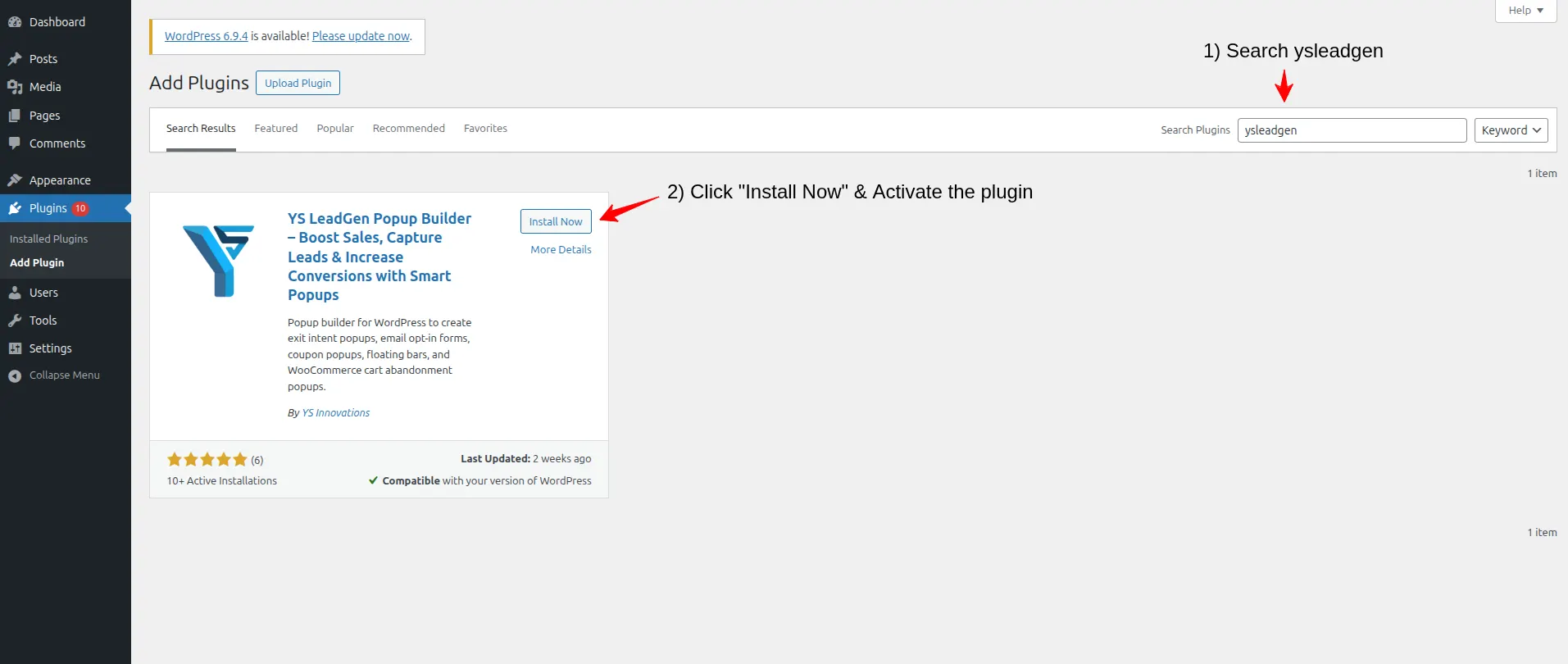
Installing a WordPress plugin is usually straightforward. If you have access to the WordPress admin dashboard, you can install most plugins without touching any code.
Install a Plugin from the WordPress Dashboard
- Log in to your WordPress dashboard.
- Go to Plugins → Add New Plugin.
- Search for the plugin you want to install.
- Select the plugin and click Install Now.
- Once the installation is complete, click Activate.
- Open the plugin’s settings and complete any required configuration.
For example, if you want to install an SEO plugin such as Yoast SEO, search for its name from the Add Plugins screen, verify that you have selected the correct plugin, and then install and activate it.
Installing a Premium Plugin
Premium plugins are often distributed as ZIP files rather than directly through the WordPress plugin directory.
In that case, go to Plugins → Add New Plugin → Upload Plugin, select the ZIP file provided by the plugin developer, and install it. After activation, you may need to enter a license key or connect the plugin to your account to enable premium features.
A Few Things to Check Before Installing
Avoid installing plugins simply because they appear on a recommendation list. First check whether the plugin actually solves a problem on your website.
It is also a good idea to review the plugin’s compatibility, update history, support information and any important configuration requirements before activating it on a live website.
Most importantly, avoid installing multiple plugins that provide essentially the same functionality. For example, you generally do not need two separate SEO plugins handling the same on-page SEO settings.
A smaller, well-maintained plugin stack is usually easier to update, troubleshoot and manage than a collection of plugins that overlap with one another.
Key Takeaways: Essential WordPress Plugins for Every Website
There is no universal plugin stack that works for every WordPress website. The right combination depends on what the website does, how it is managed and what you want visitors to do.
A few principles are worth keeping in mind when building your plugin stack:
- SEO matters if organic search is an important source of traffic. Yoast SEO and Rank Math are two options to consider.
- Security should be part of the basic setup, particularly for business websites and stores that handle user information.
- Backups give you a way back when an update, configuration change or unexpected problem affects your website.
- Performance requires more than one plugin. Caching, image optimization, hosting, themes and the amount of code loaded on a page can all affect website speed.
- Choose a page builder based on your workflow. Tools such as Elementor can make visual design easier, but they are not necessary for every WordPress website.
- Analytics help you make better decisions. Traffic numbers are useful, but understanding where visitors come from and what they do is often more valuable.
- WooCommerce is the natural starting point for WordPress eCommerce, with extensions available when a store needs additional functionality.
- Forms and lead generation serve different purposes. A form plugin can handle enquiries, while a tool such as YS LeadGen can be useful when you want to present lead-capture campaigns based on visitor behaviour.
- Avoid overlapping plugins. If two plugins perform the same job, choose the one that best fits your requirements rather than running both without a clear reason.
- Review your plugin stack regularly. Remove plugins you no longer use and keep the ones you rely on updated and properly configured.
The objective is not to install as many plugins as possible. It is to build a WordPress setup where every plugin has a clear purpose and contributes something useful to the website.
WordPress Plugin Checklist: What to Install First
If you are setting up a new WordPress website, you do not need to install every plugin mentioned in this guide on day one. Start with the functionality your website needs and build from there.
A simple starting point might look like this:
- SEO: Yoast SEO or another SEO plugin that fits your workflow
- Security: Wordfence Security or a comparable security solution
- Backups: UpdraftPlus or a reliable backup system provided by your hosting company
- Performance: WP Rocket or another caching and optimization solution appropriate for your hosting setup
- Page Building: Elementor if you need a visual page builder
- Analytics: MonsterInsights if you want Google Analytics data inside WordPress
- eCommerce: WooCommerce if you are selling products or services online
- Image Optimization: Smush or another image optimization solution
- Spam Protection: Akismet if your website receives comments or other supported submissions
- Forms: WPForms for contact and general-purpose forms
- Lead Generation: YS LeadGen if you need targeted popup campaigns, exit-intent forms, scroll-based campaigns or other visitor-triggered lead capture
You may need only a few of these. You may also need completely different plugins for functions specific to your business.
The best WordPress setup is not the one with the most plugins. It is the one where every installed plugin has a clear purpose, is maintained properly and works well with the rest of your website.
Before adding another plugin, ask one simple question: What problem will this plugin solve for my website?
If you have a clear answer, it is much easier to build a WordPress plugin stack that stays useful as your website grows.
Frequently Asked Questions About WordPress Plugins
There is no universal list of essential plugins. Most websites will need solutions for areas such as SEO, security, backups and performance, while other requirements depend on the type of website. A WooCommerce store, for example, needs eCommerce functionality that a simple business website may not need.
There is no fixed number that applies to every WordPress website. The important factor is whether each plugin has a clear purpose and is well maintained. A website with 15 useful plugins can be healthier than one with five poorly developed or unnecessary plugins.
Yes. Many websites use a combination of free and premium plugins. Free versions can be enough for basic requirements, while premium versions may provide additional features, integrations, support or advanced controls.
Keep plugins updated when compatible updates are available, but take a sensible approach on important websites. For business and eCommerce sites, maintain a recent backup and test significant updates before applying them to a production website when possible.
They can, depending on what the plugin does and how it is implemented. A plugin may affect page performance, indexing, structured data, redirects or the user experience. This does not mean plugins are inherently bad for SEO; the important consideration is how they are configured and what they add to the website.
Yes, a plugin can contribute to performance problems, but the number of plugins alone does not determine website speed. The quality of the plugin, the features being used, the assets it loads, the hosting environment and the rest of the website all matter.
If you no longer need a plugin, removing it is generally better than leaving it installed and inactive. Before deleting one, make sure you no longer need its functionality and check whether it stores settings or data that you may want to retain.
You can, but it is usually better to avoid unnecessary overlap. Running multiple SEO, caching, security or optimization plugins can create conflicts or duplicate functionality. Choose the plugin that best fits your requirements unless there is a specific reason to use more than one.
Not every website does. If your goal is simply to provide a contact form, a form plugin may be sufficient. If you want to collect leads through targeted popups, exit-intent campaigns, scroll triggers or timed offers, a dedicated lead-generation plugin such as YS LeadGen can provide those additional campaign options.
No. WooCommerce is primarily for websites that need eCommerce functionality. A company website, blog or portfolio that does not sell products online does not need WooCommerce.
Start with the specific problem you want to solve. Then compare the plugin’s features, compatibility, update history, support, performance impact and pricing. A plugin that fits your website well is usually a better choice than one with the largest feature list.
Final Thoughts
The right WordPress plugins can make a website easier to manage, safer, faster and more useful for visitors. But there is no fixed list of plugins that every website must install.
A business website may need SEO, security, backups, analytics and lead generation. An online store will usually need WooCommerce and additional tools for payments, shipping, marketing and customer retention. A content-focused website may have very different requirements.
The plugins covered in this guide are a starting point rather than a checklist. Before installing any plugin, think about the problem you are trying to solve and whether the plugin genuinely improves the way your website works.
If your website is already live, start by reviewing the essentials: make sure you have a reliable backup system, basic security protection, appropriate SEO controls and a performance setup that suits your hosting environment. From there, add functionality based on your actual requirements.
For websites that depend on enquiries, registrations or email subscribers, lead generation deserves particular attention. A standard contact form may be enough for some businesses, while others may benefit from targeted campaigns that display a form based on visitor behaviour. In those cases, YS LeadGen is one option to consider for this type of lead-generation workflow.
Most importantly, don’t install a plugin simply because someone recommends it. Look at its purpose, compatibility, maintenance, performance and whether you will actually use its features.
A well-built WordPress website does not need to be overloaded with plugins. It needs the right plugins for the job.