Getting visitors to your website is only the first part of building an online business. People may arrive through Google, social media, paid advertising, or direct visits, browse a few pages, and then leave without subscribing, making a purchase, or contacting you.
This is where a Lightbox Popup can become useful. Instead of relying only on banners or calls to action placed within the page, a Lightbox Popup temporarily brings a specific message, offer, or form into the visitor’s attention while keeping the current webpage visible in the background.
Businesses use this approach for different reasons. A WooCommerce store may want to promote a discount or encourage a purchase. A blog may want to increase email subscribers. A SaaS website might promote a free trial or product demonstration, while an agency or service business may use a popup to generate enquiries.
The good news is that you do not need to be a developer to create this type of campaign. With a WordPress popup plugin such as YS LeadGen, you can create the popup, customize its design, configure when it appears, and publish it from the WordPress dashboard.
In this guide, we will look at what Lightbox Popups are, why businesses use them, how to create one in WordPress, common mistakes to avoid, and practical ways to improve the campaign after it goes live.
Why Most Website Visitors Leave Without Taking Action
Getting people to visit a website does not necessarily mean they are ready to buy, subscribe, or contact the business. Many visitors arrive with some level of interest but leave before completing any meaningful action. Sometimes they are distracted, sometimes they are comparing alternatives, and in other cases they simply need more time before making a decision.
A visitor might like a product but decide to come back later. Someone reading a blog article may find the information useful but forget to subscribe. A potential customer may look through a service page and leave without submitting an inquiry. These situations are common across eCommerce stores, SaaS websites, blogs, agencies, and service businesses.
For example, a WooCommerce shopper might add products to their cart and abandon the checkout process. A SaaS visitor may spend time comparing pricing plans but postpone starting a free trial. A blog reader may finish an article and leave without joining the email list.
None of these visitors necessarily had zero interest. The website simply did not convert that interest into an action during the session.
This is why conversion optimization has become an important part of modern digital marketing. Businesses are not only concerned with bringing more visitors to their websites; they also need to consider how effectively they convert the visitors they already have.
Instead of relying entirely on static content and banners, websites can use popup overlays, lead capture forms, personalized offers, smart targeting, and behavioural triggers. These approaches create additional opportunities to engage visitors at relevant points in their browsing journey.
Among these approaches, Lightbox Popups have a particular advantage: they can temporarily bring the visitor’s attention back to a specific offer or action without requiring them to leave the current page.
Why Traditional Website Banners Often Fail
Most websites already use banners, announcement bars, promotional sections, and calls to action to encourage visitors to take the next step. These elements can be useful, but they depend heavily on the visitor actually noticing them.
Visitors tend to scroll quickly, skim headings, ignore sidebars, and move past areas that look like standard advertisements. When the same types of banners appear across many websites, people can become less responsive to them. This behaviour is commonly described as banner blindness.
For example, imagine a WooCommerce store displaying a “Get 20% OFF Today” message in a homepage banner. The offer may be attractive, but a visitor can scroll past it without paying attention.
A similar problem can happen on a SaaS website where a free-trial CTA is placed further down a long landing page. If visitors never reach that section, they may never see the offer.
The problem is not necessarily the quality of the offer. Sometimes the offer simply does not receive enough attention at the right moment.
A Lightbox Popup approaches this differently. Instead of leaving the offer in a fixed location on the page, it temporarily places the message in the visitor’s immediate field of attention while reducing the visual prominence of the background.
Used carefully, this can give an important conversion message a better opportunity to be noticed without requiring the visitor to navigate to another page.
What Is a Lightbox Popup?
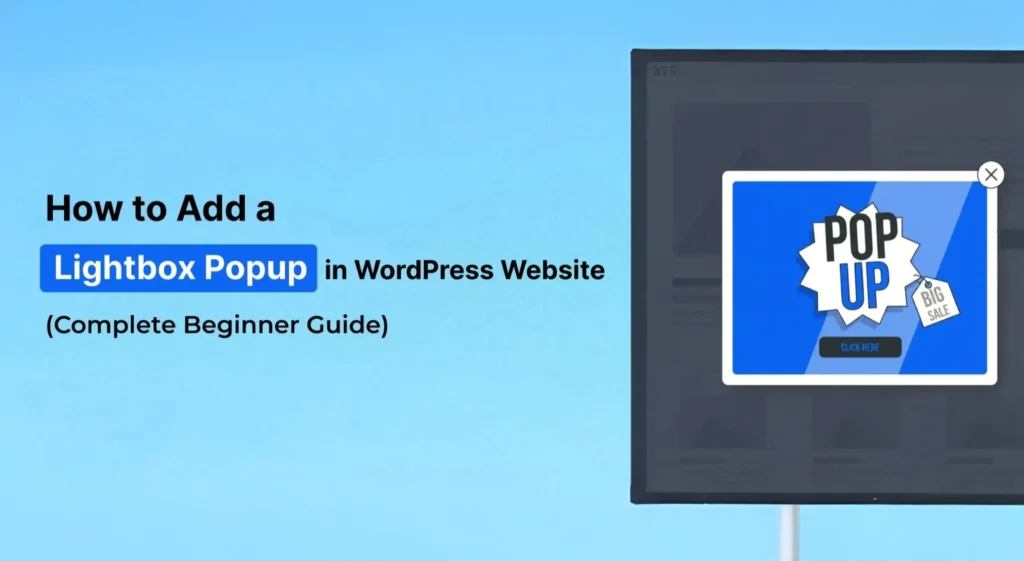
A Lightbox Popup is a popup overlay that appears on top of the current webpage while the rest of the page is visually dimmed in the background.
The background page remains visible, but it becomes less prominent while the popup is active. This creates a focused area where the visitor can concentrate on the information being presented.
Depending on how the campaign is configured, the popup can contain a headline, supporting text, image, lead capture form, promotional offer, button, countdown timer, or close option.
WordPress websites can use Lightbox Popups for many different purposes. An online store might use one to present a discount or product offer, while a blog could use it to encourage visitors to subscribe to an email list.
SaaS websites can use popup overlays to promote free trials, product demonstrations, or feature announcements. Service businesses can use them to collect enquiries and contact details.
Because the popup appears above the existing page, it can attract attention without requiring major changes to the page’s original layout. This makes Lightbox Popups useful when a business wants to add a conversion-focused campaign to an existing WordPress website.
The effectiveness of the popup ultimately depends on how it is used. The message, offer, timing, targeting, and design all influence whether visitors find the popup useful or simply see it as another interruption.
Why Lightbox Popups Still Work in 2026
Popups have been used on websites for many years, but the way they are used has changed. Older popup campaigns often displayed the same message to every visitor, appeared immediately after a page loaded, and interrupted the browsing experience without considering what the visitor was doing.
Modern Lightbox Popups can be much more targeted. Businesses can control when a popup appears, which visitors see it, and what type of message is presented.
For example, a WooCommerce store can show a relevant offer to shoppers browsing specific products, while a blog can present a newsletter signup after a visitor has spent time reading an article. A SaaS website may use a popup to highlight a free trial or product demonstration when a visitor reaches a relevant stage of the page.
Timing also matters. A popup that appears immediately may feel intrusive, while one that appears after a visitor has interacted with the page can feel more relevant.
Features such as scroll triggers, exit intent, time delays, and other behavioural conditions make it possible to control these interactions more carefully.
The continued usefulness of Lightbox Popups therefore comes from how they are implemented. When the message is relevant, the timing is appropriate, and the campaign has a clear purpose, a popup can become a practical part of a website’s conversion strategy rather than simply another promotional element.
How Businesses Use Lightbox Popups to Improve Conversions
Lightbox Popups can serve very different purposes depending on the type of website and the action a business wants visitors to take.
An online store may use a popup to promote a product or discount, while a SaaS company may focus on free trials or demos. Blogs often use them to build an email audience, and service businesses can use them to collect enquiries.
The important part is to connect the popup campaign with a clear business objective.
How WooCommerce Stores Use Popup Campaigns
WooCommerce stores can use Lightbox Popups at different stages of the shopping journey.
A store might promote a limited-time discount, encourage visitors to use a coupon, highlight a product recommendation, or provide an incentive for completing a purchase.
For example, a visitor browsing a product category could receive an offer related to the products they are viewing. A store can also use a popup to encourage visitors to continue shopping, promote complementary products, or provide an incentive when they appear ready to leave.
The campaign should support the shopping experience rather than repeatedly interrupting it.
How SaaS Businesses Use Popup Overlays
SaaS websites often need to turn website visitors into trial users, demo requests, or leads.
A Lightbox Popup can provide an additional opportunity to present these actions when a visitor has already shown interest in the product.
For instance, a SaaS company can use a popup to promote a free trial, encourage visitors to book a product demonstration, or highlight an important product feature.
The message can be tailored to the page the visitor is currently viewing so that it feels connected to their interest.
How Bloggers and Publishers Grow Email Subscribers
For blogs and publishing websites, building an email list can help turn occasional visitors into returning readers.
A Lightbox Popup can be used to present a newsletter signup while someone is reading an article.
Rather than relying only on a signup form at the bottom of a page or inside a sidebar, publishers can use carefully timed popup campaigns to give readers another opportunity to subscribe.
The offer can also be connected to the content. For example, a website publishing marketing guides might invite readers to receive additional tips, resources, or future articles by email.
How Agencies and Service Businesses Generate Leads
Agencies and service businesses can use Lightbox Popups to make it easier for interested visitors to start a conversation.
A popup might contain a consultation request, contact form, service enquiry, or another simple lead capture option.
This can be useful when visitors spend time reviewing a service page but do not immediately submit the main contact form. A well-timed popup can provide another opportunity to take action without requiring the visitor to search for the contact section.
For these businesses, keeping the form simple is particularly important. The popup should make it easy for a potential customer to provide the information needed to begin the conversation without creating unnecessary friction.
Benefits of Using Lightbox Popups in WordPress
Lightbox Popups can give WordPress websites another way to engage visitors and guide them toward an important action.
One of the main benefits is increased visibility. A popup temporarily brings an important message into the visitor’s immediate view, making it less likely that an offer, signup form, or call to action will simply be overlooked among the other elements on the page.
They can also support lead generation. Businesses can use Lightbox Popups to collect email addresses, contact details, or enquiries from visitors who may not otherwise complete a standard form.
For WooCommerce stores, popups can create additional sales opportunities. Businesses can use them to present discounts, product offers, or other purchase-related messages at relevant points in the customer journey.
Another advantage is better targeting. Instead of showing exactly the same message to everyone, businesses can use display rules and triggers to make campaigns more relevant to different visitors, pages, or situations.
A single WordPress website can also use different campaigns for different goals, such as growing an email list, promoting an offer, collecting enquiries, or encouraging visitors to take a specific action.
Ultimately, the value of a Lightbox Popup depends less on simply having a popup and more on how thoughtfully the campaign is planned. A clear message, relevant offer, appropriate timing, and simple user experience are what make the format useful.
How to Add a Lightbox Popup in WordPress
Adding a Lightbox Popup to a WordPress website does not require you to manually write popup scripts or modify the site’s code.
With a dedicated popup plugin, the process can be handled from the WordPress dashboard. The important part is to decide what you want visitors to do before creating the campaign.
For this guide, the process uses YS LeadGen, a WordPress popup and lead-generation plugin.
The overall process is:
1. Install a Lightbox Popup plugin.
2. Create a new popup campaign.
3. Choose the right popup template.
4. Customize the Lightbox Popup design.
5. Configure display rules.
6. Configure optional popup triggers.
7. Publish and test the popup.
The following steps explain each part in more detail.
Step 1 – Install a Lightbox Popup Plugin in WordPress
The first step is to install a WordPress popup plugin that supports Lightbox-style campaigns.
Using a dedicated plugin keeps the setup inside the WordPress dashboard, so you can create, customize, and manage popup campaigns without manually adding code to your website.
For this guide, we are using YS LeadGen.
What to Do
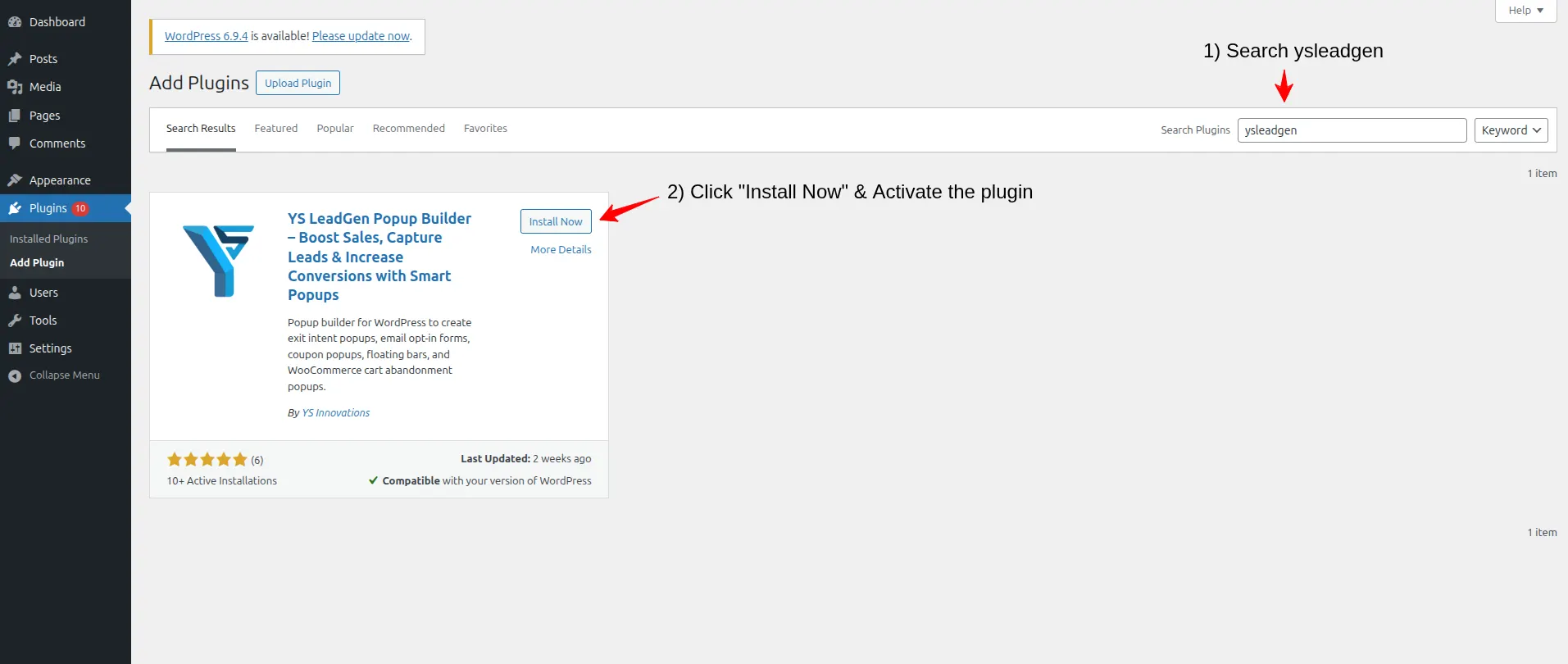
1. Log in to your WordPress dashboard.
Open your WordPress admin area.
2. Go to:
Plugins → Add New Plugin
3. Search for YS LeadGen.
Find the plugin in the available plugin listings.
4. Install the plugin.
Complete the installation process.
5. Click Activate.
Once activated, the YS LeadGen options become available from the WordPress dashboard.
What You Should Have After This Step
At this point, you should have YS LeadGen installed and activated and be able to access its popup campaign functionality.
Example
If you run a WooCommerce store and want to create a 10% first-order discount popup, this is the only setup required at this stage. You do not need to create the actual discount popup yet. The purpose of Step 1 is simply to install and activate the popup system.
A dedicated plugin also makes it easier to create multiple campaigns later. For example, the same website could have one newsletter campaign, one WooCommerce offer, and another campaign for service enquiries.
Step 2 – Create a New Popup Campaign
Once YS LeadGen is installed and activated, create a new popup campaign.
This is where you define the basic purpose of the Lightbox Popup before working on its design.
What to Do
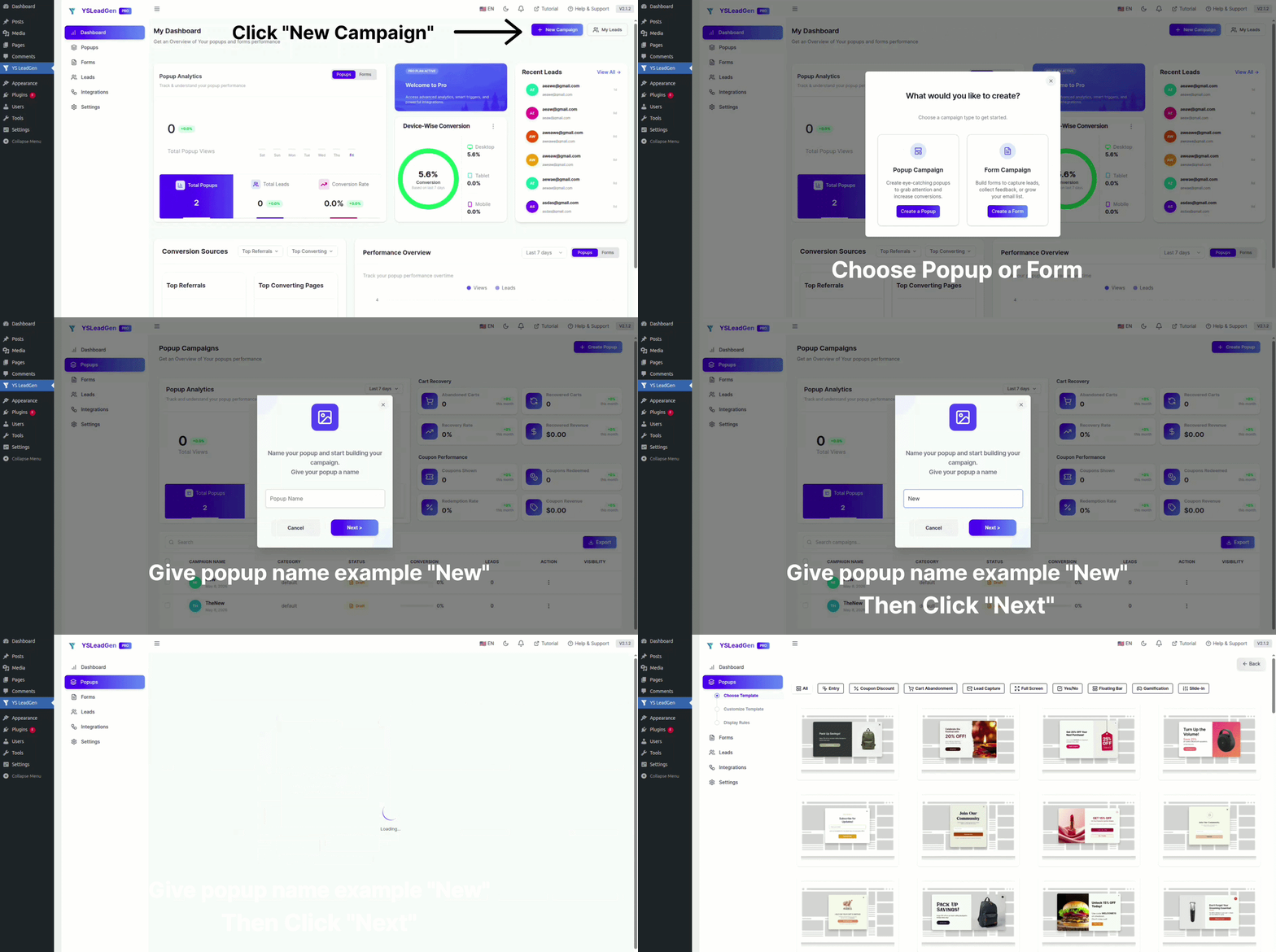
1. Open YS LeadGen from the WordPress dashboard.
Go to the popup campaign area.
2. Choose the option to create a new campaign.
Start a new popup rather than editing an existing campaign.
3. Choose the popup format you want to use.
For this guide, the objective is to create a Lightbox Popup.
4. Give the campaign a clear internal name.
Use a name that tells you exactly what the campaign is for.
For example:
- Newsletter Signup
- 10% Discount Popup
- Free Trial Campaign
- Service Enquiry Popup
Decide the Goal Before Moving On
Before continuing, decide what the visitor should do.
For example:
Goal: Collect email subscribers from blog readers.
Or:
Goal: Offer 10% off to first-time WooCommerce customers.
Or:
Goal: Generate enquiries from visitors reading a service page.
This decision will influence the template, headline, form, offer, targeting, and trigger you choose later.
Example
Suppose you run a SaaS website and want more free-trial registrations.
Your campaign could be:
Campaign Name: Free Trial Popup
Goal: Get visitors to start a free trial
Primary CTA: Start Free Trial
Keeping this objective clear makes the rest of the setup much easier.
Step 3 – Choose the Right Popup Template
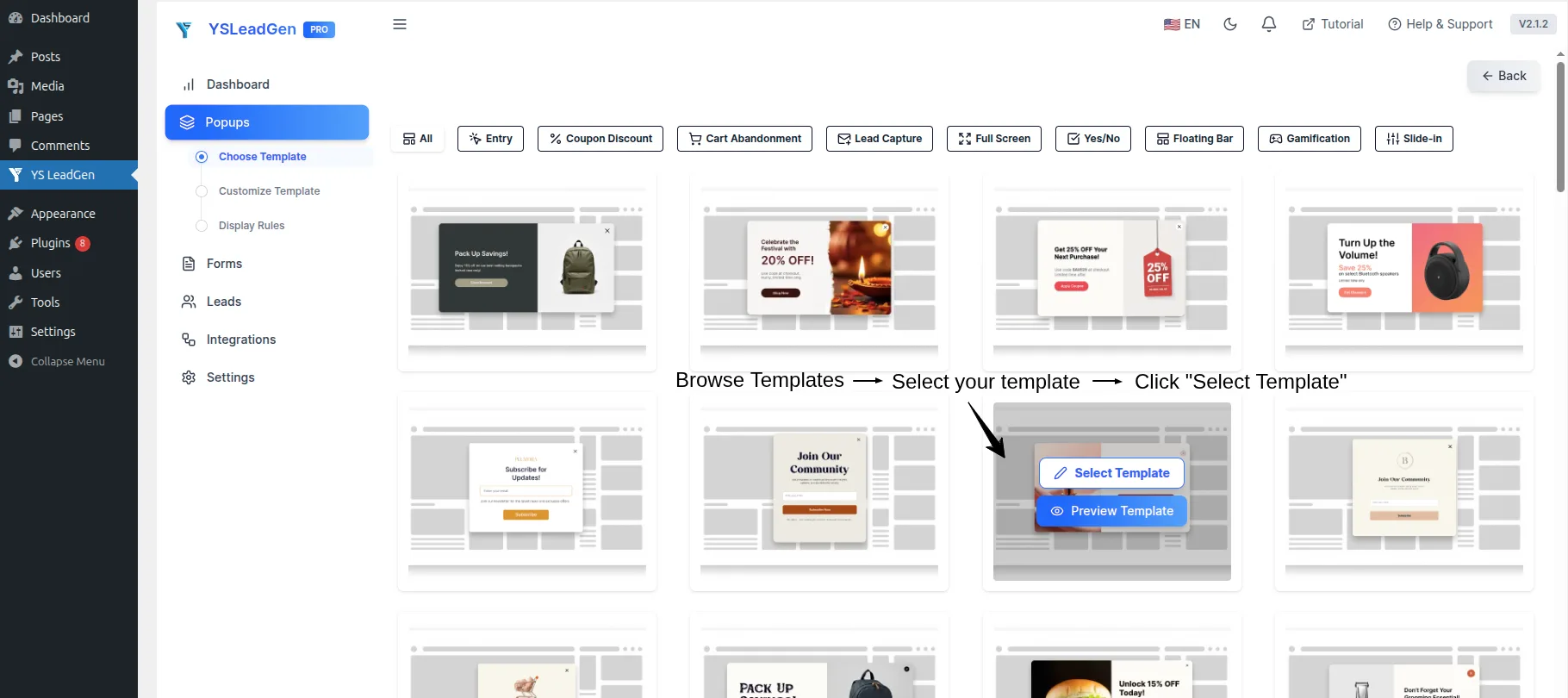
After creating the campaign, choose a popup template.
A template gives you a starting point for the Lightbox Popup, so you do not have to build the entire layout from scratch.
The important point is to choose the template based on the campaign goal, rather than selecting a design simply because it looks attractive.
Match the Template to the Campaign
For example:
| Campaign | Suitable Popup Content |
|---|---|
| Newsletter signup | Headline + short message + email field + CTA |
| WooCommerce discount | Offer + discount information + CTA |
| Lead generation | Short message + simple form + CTA |
| SaaS free trial | Benefit + supporting copy + trial CTA |
A newsletter campaign may need a simple layout with a clear headline and email field. A WooCommerce promotion may require more space for an offer, product image, discount information, and CTA button.
Keep the Website’s Design in Mind
The popup should also fit naturally with the website.
Consider the site’s:
- Typography
- Colours
- Images
- Button styles
- Overall visual identity
- Spacing and layout
A popup that looks completely disconnected from the rest of the website can feel like an unrelated advertisement.
Remember: The Template Is Only a Starting Point
Do not worry if the selected template is not perfect.
You can customize the headline, text, images, buttons, form fields, spacing, and other visual elements later.
The objective at this stage is simply to choose a useful starting structure for the campaign.
Step 4 – Customize the Lightbox Popup Design
Once you have selected a template, customize the popup so that it matches your website and communicates the offer clearly.
This is where you can adjust the popup’s content, layout, typography, images, buttons, and other design elements.
1. Write the Main Message
Start with the message itself.
The visitor should quickly understand:
- Why the popup is appearing
- What is being offered
- What they should do next
If you are offering a discount, make the offer easy to understand.
If the goal is email collection, explain what visitors will receive after subscribing.
2. Match the Website’s Branding
Adjust the popup’s:
- Fonts
- Colours
- Images
- Button style
- Spacing
- Overall visual appearance
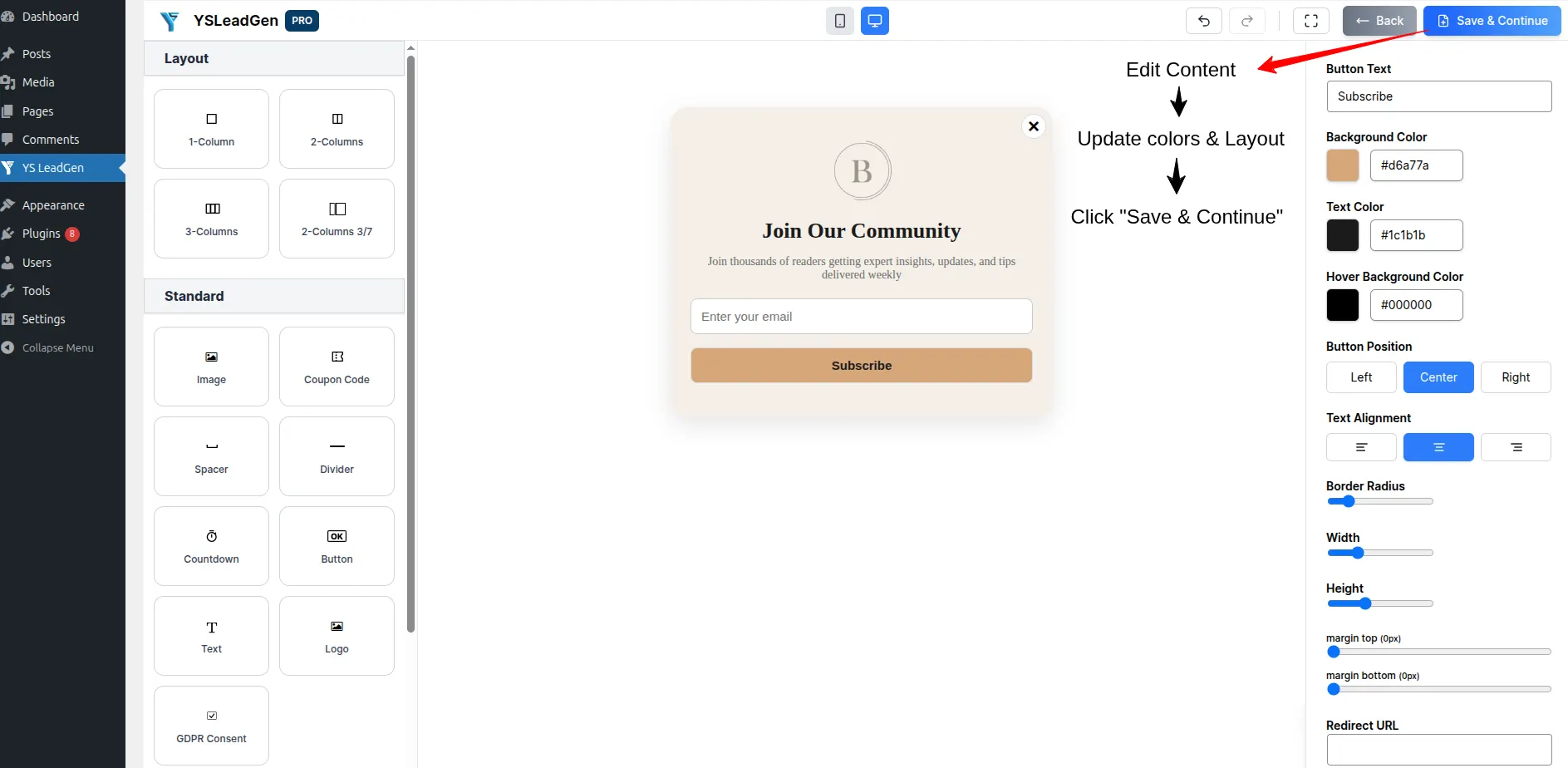
The popup should feel like part of the website rather than something completely separate.
3. Keep the Form Appropriate
If the campaign includes a form, ask only for information that is actually needed.
For example, a newsletter campaign may only require an email address.
A service enquiry may need:
- Name
- Email address
- Brief description of the requirement
There is little benefit in asking for information that you do not need at this stage.
4. Use Images Only When They Help
Images can support the message when they are relevant.
For example:
WooCommerce campaign: Use a relevant product image.
Lead-generation campaign: Use a simple visual that supports the offer.
Newsletter campaign: A supporting image may be useful, but it should not compete with the signup message.
How Headlines Influence Popup Conversions
The headline is one of the first things visitors notice when the popup appears.
A vague headline such as:
Welcome to Our Website
does not give the visitor much reason to continue.
A more specific headline explains the benefit.
Examples:
Get 10% Off Your First Order
Start Your Free Trial Today
Get New Marketing Guides by Email
The supporting text can then provide additional context, while the CTA button should make the next step obvious.
A popup does not need to contain every piece of information about the offer. Its job is to make the next action clear and easy to understand.
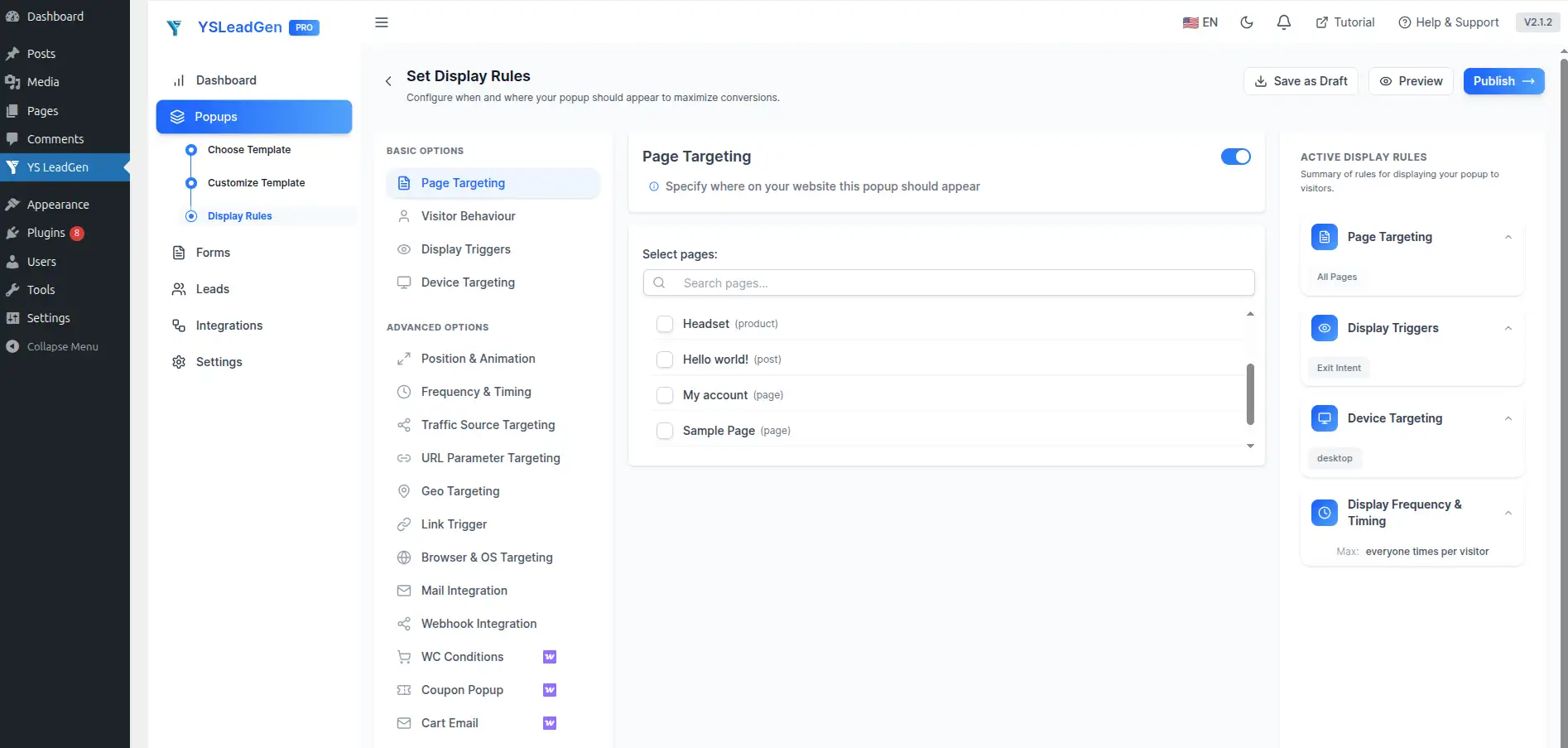
Step 5 – Configure Display Rules
After customizing the popup, decide where and when it should appear.
Display rules help you control the audience and pages for each campaign instead of showing the same popup across the entire website.
Example: WooCommerce Website
Suppose you have a discount campaign for a particular product category.
Instead of showing the popup on every page, configure it around the relevant product pages.
Example: Blog
If the goal is newsletter growth, you may want the popup to appear on article pages.
Example: Service Business
If the campaign is designed to generate enquiries, you can target relevant service pages.
Configure the Important Conditions
When setting the display rules, consider:
Pages: Where should the popup appear?
Audience: Which visitors should see it?
Devices: Should it appear on desktop, mobile, or both?
Frequency: How often should the same visitor see it?
Showing the same popup every time a visitor loads a page can become frustrating, particularly after the visitor has already dismissed it or completed the intended action.
Practical Example
Imagine a digital marketing agency has these pages:
- SEO Services
- Google Ads Services
- Web Development
- About Us
- Blog
The agency wants to generate SEO enquiries.
A more relevant campaign would be:
Popup: Free SEO Consultation
Target Pages: SEO-related pages
Goal: Generate enquiries
Showing the same SEO consultation popup on unrelated blog posts or the About page may be less relevant.
The exact display conditions should therefore be based on the campaign’s purpose.
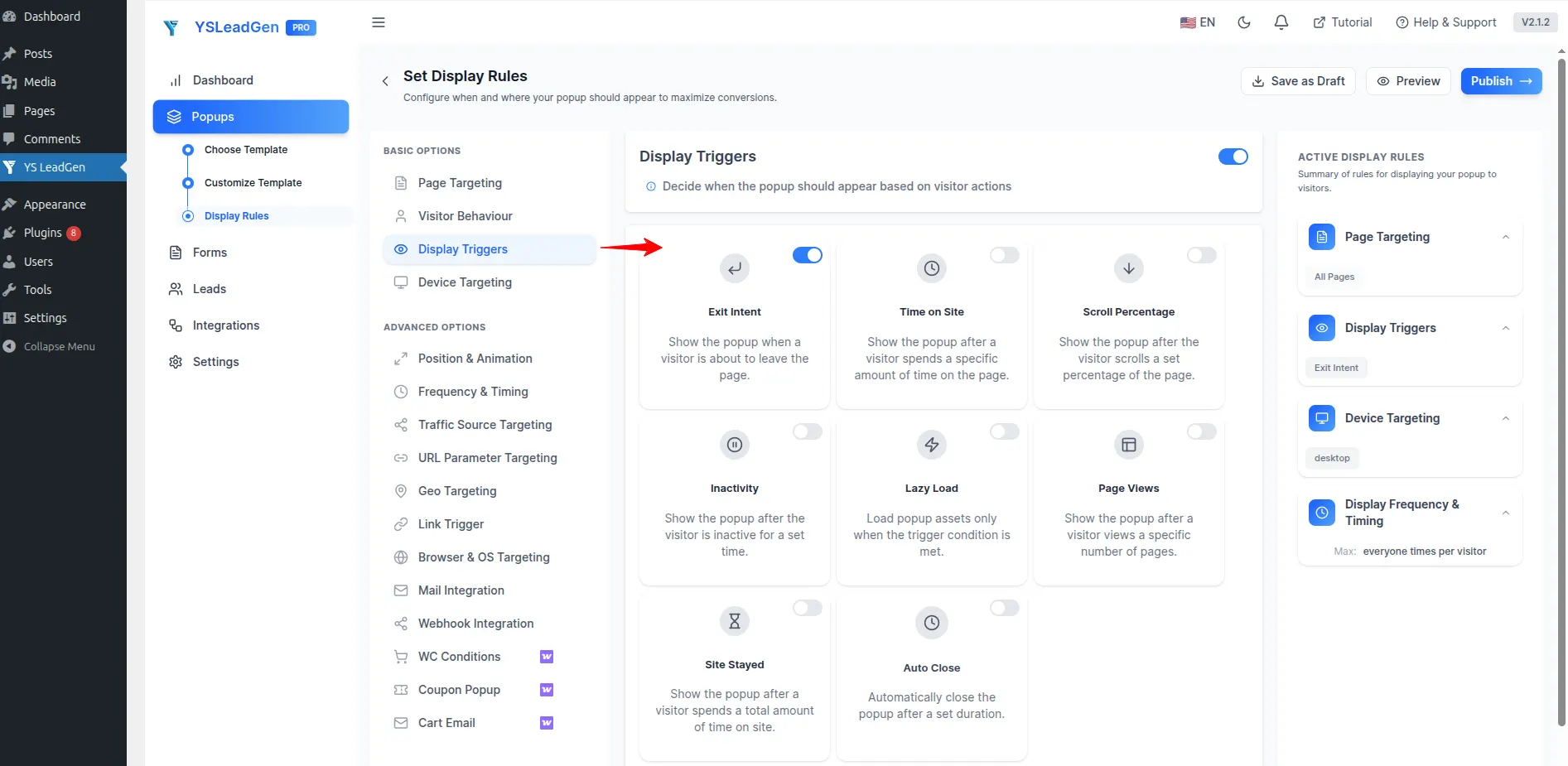
Step 6 – Configure Optional Popup Triggers
Display rules determine where a popup can appear, while triggers help determine when it appears during a visitor’s session.
You do not need to use every available trigger. Choose the one that makes sense for the campaign.
Time Delay
A time-delay trigger allows the popup to appear after a visitor has spent some time on the page.
This can be useful when you want visitors to read the initial content before seeing the offer.
Example:
A blog visitor opens an article.
Instead of showing the newsletter popup immediately, allow the visitor to read for a while before presenting the signup.
Scroll Trigger
A scroll trigger can display the popup after a visitor has reached a particular portion of the page.
This can work well for long-form blog articles because the visitor has already demonstrated interest in the content.
Example:
A visitor reads approximately part of a marketing guide.
The popup then appears with:
Get More Marketing Tips by Email
Exit Intent
An exit-intent trigger can display a popup when a visitor shows behaviour associated with leaving the page.
This can be useful for:
- Final discount offers
- Newsletter signup
- Lead capture
- Last-minute shopping incentives
Example:
A WooCommerce visitor is about to leave a product page.
The popup presents:
Before You Go — Get 10% Off Your First Order
The exact trigger should depend on the campaign and visitor journey. The objective is to present the popup at a useful moment rather than simply making sure every visitor sees it.
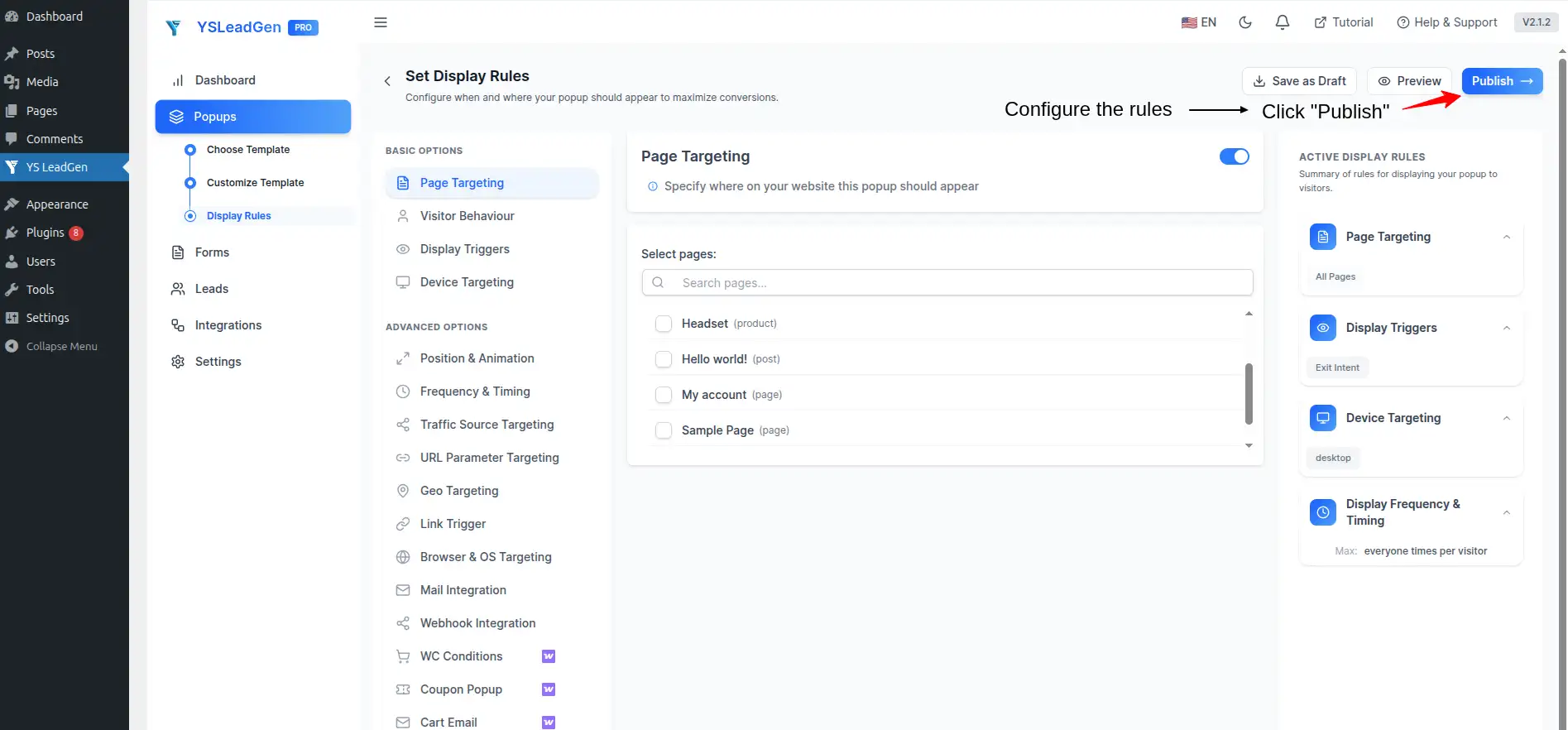
Step 7 – Publish and Test the Popup
Once the design, display rules, and triggers are configured, the campaign is ready to be published.
However, do not publish and immediately assume everything is working correctly. Test the popup first.
Desktop Test
Check:
- Headline
- Supporting text
- Images
- Form fields
- CTA button
- Popup positioning
- Close option
- Overall spacing
Make sure everything is visible and usable.
Mobile Test
Open the website on a mobile device and check:
- Does the popup fit within the screen?
- Is the text readable?
- Can visitors tap the CTA easily?
- Can they find the close button?
- Are the form fields comfortable to use?
- Does the popup require unnecessary scrolling?
Test the Trigger
If you configured a time delay, confirm that it appears at the expected time.
If you configured a scroll trigger, test the scroll behaviour.
If you configured exit intent, test that behaviour as well.
Test the Form
If the popup collects leads, submit a test entry and make sure the information is captured correctly.
Test the CTA
If the popup contains an offer or CTA, click it and make sure the visitor reaches the intended destination.
Final Check
Only after the design, targeting, triggers, form, CTA, desktop layout, and mobile layout have been tested should you publish the campaign.
A few minutes of testing can prevent simple design, targeting, and functionality issues from affecting the visitor experience.
Why Most WordPress Popup Campaigns Fail
Creating a Lightbox Popup is relatively straightforward. Getting that popup to work well is a different challenge.
A campaign can be technically correct and still produce poor results if the timing, offer, design, or targeting does not match the visitor’s needs.
Common problems include:
- Showing the popup before visitors have had time to engage with the page
- Offering something that does not provide enough value
- Adding too much information
- Ignoring mobile visitors
- Showing the same generic campaign across the entire website
- Using the same timing and targeting rules for every visitor
A popup should be treated as part of the website experience rather than as a separate promotional element.
Showing Popups Too Early
One of the easiest ways to make a Lightbox Popup feel intrusive is to display it as soon as a visitor lands on the website.
Someone who has just arrived may not have had enough time to understand the page, read the content, or decide whether the website is relevant to them.
For example, a visitor who lands on a blog article and immediately sees a newsletter popup may not yet know whether the content is useful.
Similarly, someone visiting a product page may need time to review the product details before being presented with a promotional offer.
The timing should therefore be connected to the visitor’s interaction with the page.
A short delay may give visitors enough time to understand the content. A scroll-based trigger may be more appropriate for a long article, while exit intent may make sense for a campaign designed to provide one final opportunity before a visitor leaves.
There is no single timing rule that works for every website. Test the campaign and adjust the timing based on how visitors respond.
Using Weak Offers
A popup can have a polished design and still perform poorly if the offer does not give visitors a strong reason to act.
Simply asking people to “Subscribe”, “Learn More”, or “Contact Us” may not be enough when the popup interrupts their browsing experience.
The offer should provide clear value.
For an eCommerce store, this could be:
- A discount
- Special promotion
- Free shipping
- Product-related offer
A blog might offer:
- Useful resources
- New articles
- Email updates
- A lead magnet
A SaaS website could promote:
- Free trial
- Product demonstration
- Useful resource
The offer does not always have to be a discount. What matters is that visitors understand what they will receive in return for taking the requested action.
Before publishing, ask:
Why should the visitor take this action now?
If the answer is unclear, the offer or messaging may need improvement.
Adding Too Much Information
A Lightbox Popup has limited space, and visitors usually make a quick decision about whether the message is relevant.
Long paragraphs, multiple offers, several buttons, and unnecessary form fields can make the popup difficult to understand.
The popup should communicate one main message.
For example, if the purpose is to collect email subscribers, the headline and supporting text should explain the value of subscribing and lead visitors toward the signup form.
If the campaign is promoting a discount, visitors should be able to understand the offer and find the relevant CTA without searching through a large amount of content.
Some campaigns may require more information, but everything included should support the main objective.
A useful review method is simple: remove anything that does not help the visitor understand the offer or complete the intended action.
Ignoring Mobile Optimization
A Lightbox Popup that looks good on a desktop screen may not provide the same experience on a mobile device.
Smaller screens leave less space for text, images, forms, and buttons. A design that works comfortably on desktop can quickly become crowded on a phone.
Check the:
- Popup width and height
- Font sizes
- Button placement
- Form fields
- Spacing
- Images
- Close option
The visitor should be able to understand the message and complete the intended action without struggling with the layout.
A responsive popup should adapt to the device rather than simply forcing the desktop layout onto mobile visitors.
Using Generic Sitewide Popups
Showing the same popup to every visitor on every page may seem simple, but it can quickly become irrelevant.
Visitors come to a website for different reasons, and the page they are viewing provides useful context about what they are interested in.
For example:
Blog visitor: Newsletter signup or related resources
WooCommerce visitor: Discount, product offer, or related product
Service page visitor: Consultation or enquiry
SaaS pricing page visitor: Free trial or demonstration
The same message does not necessarily make sense in all of these situations.
Instead, create a small number of campaigns around the main visitor journeys on the website and use display rules to make them more relevant.
You do not need a different popup for every page. The objective is to make the campaign relevant without creating an unnecessarily complicated popup system.
Best Practices for High-Converting Lightbox Popups
The technical setup is only one part of creating a successful popup campaign.
The message, design, offer, timing, form, targeting, and mobile experience all influence how visitors respond.
The following practices can help you build campaigns that are easier to understand and more useful to visitors.
Focus on One Clear Goal
Every Lightbox Popup should have one primary objective.
That objective might be:
- Collecting an email address
- Promoting a product offer
- Generating a service enquiry
- Encouraging a free trial
- Guiding visitors toward another specific action
When a popup tries to accomplish several objectives at the same time, the message can become confusing.
For example, a newsletter popup does not need to include a discount, product recommendation, and multiple unrelated CTAs.
Decide what you want the visitor to do first, then build the headline, supporting copy, form, and CTA around that objective.
A focused campaign is also easier to measure because you can evaluate whether it is helping visitors complete the intended action.
Use Conversion-Focused Headlines
The headline is one of the first elements visitors notice when a Lightbox Popup appears.
It should communicate the main value clearly enough that visitors can understand it without reading a long explanation.
For example:
Weak:
Join Our Community
More specific:
Get New Marketing Guides by Email
Or:
Weak:
Special Offer
More specific:
Get 10% Off Your First Order
The headline, supporting text, and CTA should work together.
The headline introduces the value, the supporting copy provides context, and the button makes the next action obvious.
The best headline does not necessarily need to be clever. It needs to be clear.
Reduce Form Friction
If your Lightbox Popup includes a form, keep the process as simple as possible.
Every additional field asks the visitor to spend more time completing the form.
A newsletter signup may only require:
Email address
A service enquiry might require:
Name + Email + Requirement
There is little benefit in asking for information that you do not actually need at that stage.
Before publishing, review every field and ask whether it is necessary.
If removing a field would not affect your ability to follow up or deliver the promised offer, consider leaving it out.
A shorter and clearer form can make the intended action easier for visitors to complete.
Create Contextually Relevant Offers
A popup becomes more useful when the offer has a clear connection to the page the visitor is viewing.
For example:
Marketing article:
Offer related resources or email updates.
WooCommerce product page:
Offer a relevant discount or shopping incentive.
Service page:
Offer a consultation or enquiry.
SaaS feature page:
Offer a free trial or demonstration.
The popup does not need to be completely different for every page. Related pages can be grouped together and targeted with the same campaign.
The important part is that the offer should make sense in the context where it appears.
Optimize Popup Timing Carefully
A useful offer can still feel intrusive if it appears before visitors have had enough time to understand the page.
Consider using:
- Time delay
- Scroll trigger
- Exit intent
- Other relevant behavioural conditions
For example, a long-form blog article may work better with a scroll-based trigger, while an exit-intent campaign may make more sense for a final shopping offer.
There is no universal timing setting for every website.
Start with a reasonable trigger, observe the campaign, and adjust it based on visitor behaviour.
Use Mobile-Optimized Popup Designs
Mobile visitors should be considered from the beginning.
A popup that looks balanced on a desktop screen can become crowded on a phone if the content, forms, buttons, or images are not adapted to the available space.
Make sure:
- The headline is easy to read.
- The CTA is comfortable to tap.
- The close button is easy to find.
- Form fields are easy to use.
- Images do not push important content off-screen.
- The popup does not require unnecessary scrolling.
Test the complete interaction on smaller screens before publishing.
Continuously Test Popup Campaigns
A popup campaign should not be considered finished simply because it has been published.
You can test:
- Headlines
- Offers
- CTA wording
- Form fields
- Design
- Timing
- Display conditions
- Targeting
Do not change everything at once. Making focused changes makes it easier to understand which adjustment is influencing the campaign.
For example, compare two headlines while keeping the offer and timing unchanged. Once you have enough information, you can test another element.
The measurement should match the campaign objective.
A newsletter campaign should be evaluated by subscriber generation. A lead-generation campaign should focus on enquiries. A WooCommerce campaign can be evaluated around its contribution to purchase activity.
Also consider the user experience. A campaign that generates interactions but creates frustration or a poor mobile experience may still need improvement.
Why Businesses Choose YS LeadGen for Lightbox Popups
Choosing a popup plugin is not only about whether it can display a popup.
For websites running multiple campaigns, the plugin also needs to make campaign creation, customization, targeting, and management practical.
YS LeadGen is designed for WordPress websites that want to use popup campaigns for lead generation, promotions, email collection, and other conversion-focused activities.
Built for Modern WordPress Websites
YS LeadGen is built for WordPress and allows popup campaigns to be managed from the WordPress dashboard.
This means businesses can create and update campaigns without having to edit individual website pages whenever a popup needs to change.
The popup builder can be used to customize the appearance and content of campaigns for different website designs and conversion goals.
Designed for WooCommerce and Lead Generation
WooCommerce websites can use popup campaigns to support different parts of the shopping journey, including promotional offers and other conversion opportunities.
The same platform can also be used for lead-generation campaigns on service websites, SaaS businesses, and content-focused websites.
This makes it possible to manage different campaign objectives without relying on separate popup systems for each use case.
Easy Popup Customization Without Coding
Popup campaigns often need to change as offers, audiences, or marketing objectives change.
YS LeadGen provides a visual approach to popup creation and customization, allowing users to work on campaigns without manually writing popup code.
You can adjust elements such as:
- Popup content
- Design
- Forms
- Buttons
- Campaign settings
The exact configuration can then be adapted to the requirements of the website and campaign.
Smart Display Rules and Targeting
Display rules and targeting give businesses more control over where and when popup campaigns appear.
Instead of displaying one message across the entire website, campaigns can be configured around specific pages, devices, visitor behaviour, and other supported conditions.
This is particularly useful when a website has different visitor journeys.
A WooCommerce product page, blog article, pricing page, and service page can all have different conversion goals, so the popup campaign can be configured accordingly.
The result is a more structured approach to popup management, where campaigns are created around specific objectives and audiences rather than treating every visitor in exactly the same way.
How Lightbox Popups Impact SEO and User Experience
Lightbox Popups can be useful for conversion optimization, but they should be implemented carefully.
A popup becomes part of the visitor’s experience with the website, so its timing, content, design, and behaviour can influence how people interact with the page.
A campaign that repeatedly interrupts visitors, makes content difficult to access, or creates problems on mobile devices can result in a poor user experience.
Timing is therefore important.
A popup that appears immediately on every page may feel more intrusive than one triggered after a visitor has had an opportunity to engage with the content.
The content should also remain focused. Visitors should be able to understand the message quickly and have an easy way to close the popup when they are not interested.
Mobile optimization is particularly important. Buttons, forms, text, images, and close controls all need to remain accessible and usable on smaller screens.
Relevance also matters. A popup that matches the page content and visitor’s likely intent is more useful than a generic campaign shown without context.
The goal is not simply to make a popup visible. A well-designed Lightbox Popup should support the website’s primary content and conversion objectives while allowing visitors to continue browsing comfortably.
Conclusion
A Lightbox Popup can be a useful addition to a WordPress website when it is built around a clear purpose and used at the right moment.
Whether the objective is to collect email subscribers, promote a WooCommerce offer, generate enquiries, or encourage visitors to start a free trial, a well-planned popup can create another opportunity for visitors to take action.
The setup itself does not have to be complicated. With a dedicated WordPress popup plugin such as YS LeadGen, you can create a campaign, choose a template, customize the design, configure display rules, add appropriate triggers, and publish the popup without manually writing code.
The more important part is what happens after the popup is created.
Avoid showing campaigns too early, using weak offers, adding unnecessary information, or displaying the same message to every visitor. Pay attention to mobile usability and make sure visitors can easily understand and close the popup when they are not interested.
It is also worth treating popup campaigns as something that can be improved over time. Test different headlines, offers, timings, targeting conditions, and designs based on the goal of each campaign.
When Lightbox Popups are relevant, responsive, appropriately timed, and focused on one clear action, they can become a practical part of a WordPress website’s conversion strategy without unnecessarily disrupting the browsing experience.
Frequently Asked Questions
A Lightbox Popup is an overlay that appears on top of a webpage while dimming the content in the background.
It brings a specific message, offer, form, or CTA into the visitor’s immediate view without requiring them to leave the current page.
WordPress websites can use Lightbox Popups for:
- Email subscriptions
- WooCommerce discounts
- Lead generation
- Free trials
- Service enquiries
- Promotional campaigns
The popup can be configured with different designs, display rules, and triggers depending on the campaign.
Yes.
You can create a Lightbox Popup in WordPress without writing custom popup code by using a dedicated popup plugin such as YS LeadGen.
With a visual popup builder, you can:
- Create the popup layout
- Customize content and design
- Add forms and CTA buttons
- Configure display rules
- Publish responsive popup campaigns
This makes the process accessible for WordPress website owners who want to create conversion-focused popup campaigns without depending on a developer for every change.
Yes.
Modern Lightbox Popups can be designed to work across:
- Smartphones
- Tablets
- Desktop devices
A responsive popup should adapt its layout to the available screen size so visitors can read the content, interact with forms and buttons, and close the popup comfortably.
Mobile-friendly popup campaigns can support user experience, engagement, lead generation, and conversions.
Always test the campaign on smaller screens before publishing.
Yes.
WooCommerce stores can use Lightbox Popups to promote offers and create additional opportunities for visitors to complete a purchase.
Common WooCommerce popup campaigns can promote:
- Discount offers
- Free shipping campaigns
- Coupon codes
- Flash sales
- Bundle offers
- Cart recovery messages
The timing and targeting of the campaign are important. A relevant offer shown at an appropriate point in the shopping journey can help encourage visitors to continue toward a purchase.
No.
A responsive and user-friendly Lightbox Popup does not automatically create an SEO problem when it is implemented correctly.
Popup campaigns should:
- Load efficiently
- Remain mobile-friendly
- Avoid aggressive interruption
- Provide an easy way to close the popup
- Maintain a good overall user experience
The popup should support the website experience rather than preventing visitors from accessing or using the main page content.
The most useful Lightbox Popup offers generally provide visitors with a clear and immediate reason to take action.
Popular popup offers include:
- Discount coupons
- Free shipping
- Free trials
- Downloadable resources
- Webinar registrations
- Lead magnets
- Exclusive member offers
The right offer depends on the website, audience, and campaign objective.
A good offer should clearly communicate what the visitor receives in return for completing the requested action.
Popup frequency should be configured carefully so that visitors are not repeatedly shown the same campaign.
Common frequency settings include:
- Once per session
- Delayed repeat display
- Hide after conversion
- Behaviour-based triggers
These settings help balance conversion opportunities with the overall user experience.
For example, a visitor who has already completed the intended action generally does not need to see the same popup again.
The best WordPress popup plugin depends on your specific requirements, including your conversion goals, WooCommerce needs, lead-generation requirements, and popup customization preferences.
YS LeadGen provides tools for creating:
- Responsive Lightbox Popups
- WooCommerce popup campaigns
- Lead-generation forms
- Conversion-focused overlays
- Mobile-optimized popup experiences
It is designed for:
- WooCommerce stores
- SaaS businesses
- Bloggers
- Agencies
- Service websites
- Online marketers
The plugin is designed to allow these businesses to create popup campaigns without requiring coding knowledge.